Overview
STEP Tools® software for Windows supports both static and DLL versions of most C++ libraries. The static libraries are useful for a single project that builds an "exe" file, because the application is simple to distribute and only depends on the Visual C++ runtime files.
The DLL versions are needed if you build several subproject DLLs that each must access C++ objects read or written to P21 files. The memory for the objects are managed by the shared STEP Tools® software DLLs and you can work with them across your DLLs.
Distributing your applications becomes a little more complex, however, because you must make sure that your programs can find the STEP Tools® software DLLs as well as the Visual Studio runtime.
Project Settings
Configuring your project as you would for
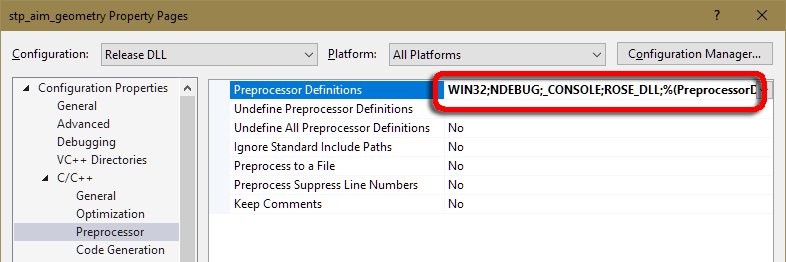
using static libraries., then add ROSE_DLL to the
list of preprocessor definitions.
Right-click on your project in the Solution Explorer and open the project properties. The field is under C/C++ | Preprocessor | Preprocessor Definitions. To change both Debug and Release settings, select "All Configurations" under the Configuration menu.
Next, change the libraries to the ones that link to the DLLs.
These have the same prefix as the static libraries, but end with
dll.lib
for release versions and dlld.lib
for debug
versions.
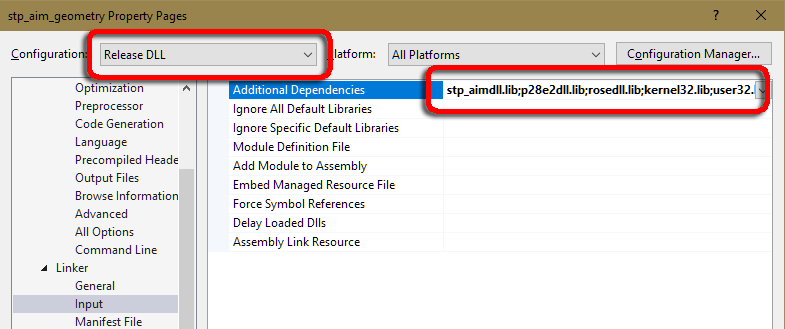
For example, the release version of a STEP program will link to stp_aimdll.lib, rosexmldll.lib, and rosedll.lib. Select the Linker | Input category of properties, change the Configuration to Release then modify the Additional Dependencies property as shown below.
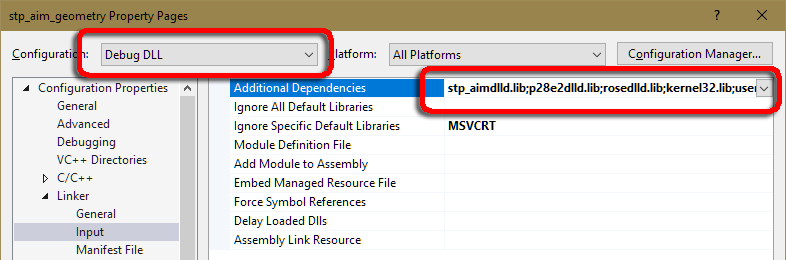
The debug version of the program will link to stp_aimdlld.lib, rosexmldlld.lib, and rosedlld.lib. In the property pages, change the Configuration to Debug then modify the Additional Dependencies property as shown below.
These are the only changes. Your project will now link to the DLL versions of the STEP Tools® libraries.
DLL Versions
The DLL files are kept under dlls in the STEP Tools® software installation directory, which is pointed to by the ROSE_DLLDIR environment variable. This directory is also added to your search path when STEP Tools® software is installed.
DLL files must use the same version of the Visual C++ runtime as your application, so we provide several copies of each DLL, each built against a different C++ runtime. Each is named using the conventions followed by the lib directories, with a trailing "d" indicating the debug runtime. If you look in the dlls directory, you will see the following for the rose library.
rose_x64_vc11.dll	- 64bit Visual C++ 11.0 build (VS2012)
rose_x64_vc11d.dll	- same, debug version
rose_x64_vc12.dll	- 64bit Visual C++ 12.0 build (VS2013)
rose_x64_vc12d.dll	- same, debug version
rose_x64_vc14.dll	- 64bit Visual C++ 14.0 build (VS2015)
rose_x64_vc14d.dll	- same, debug version
rose_x64_vc15.dll	- 64bit Visual C++ 15.0 build (VS2017)
rose_x64_vc15d.dll	- same, debug version
rose_x64_vc16.dll	- 64bit Visual C++ 16.0 build (VS2019)
rose_x64_vc16d.dll	- same, debug version
rose_x64_vc17.dll	- 64bit Visual C++ 17.0 build (VS2022)
rose_x64_vc17d.dll	- same, debug version

Or on 32bit platforms

rose_i86_vc11.dll	- 32bit Visual C++ 11.0 build (VS2012)
 ... etc ...
When you link to the import library for a DLL, it automatically adds a dependency for the correct DLL for your compiler version. For example, when you link to rosedll.lib, and your library link path is sent to the 32bit Visual Studio 2015 libraries, your application will try to load rose_i86_vc14.dll at runtime.
DLLs depend strongly on the version of the C++ runtime that they are linked with and an entire application should use the same runtime. If you link parts of your applications against different runtime versions, you are likely to get runtime errors when passing pointers between DLLs then calling the new or delete operators on them. This happens even when mixing the release and debug runtimes of the same compiler version.
If you distribute your application, be sure to to include the DLLs that your application requires.